Introduction
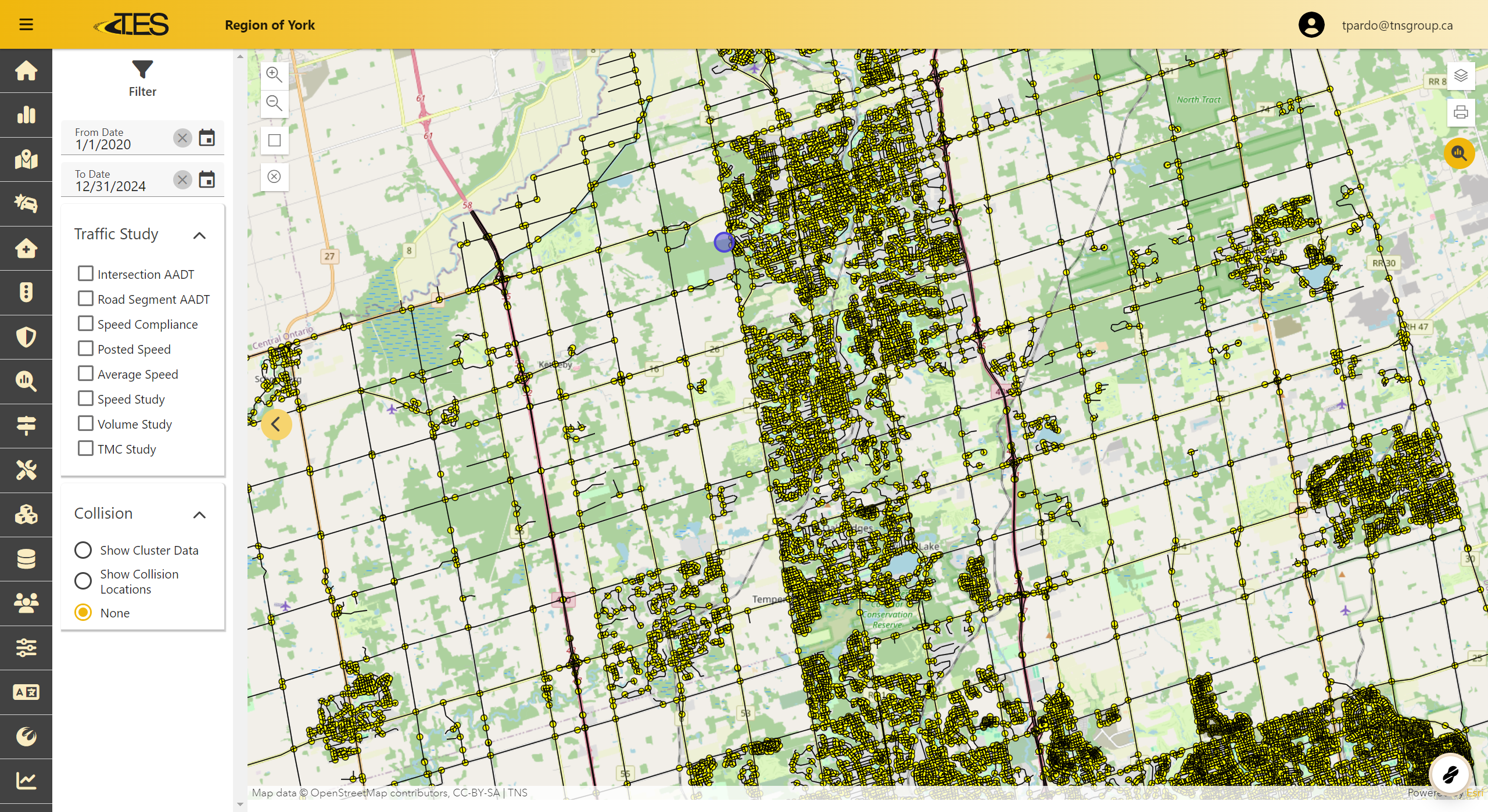
This documentation introduces the Traffic Operations module.
1. Access Traffic Operations
The Traffic Operations module provides an overview of traffic metrics, including:
-
AADT (Annual Average Daily Traffic)
-
Speed
-
Volume
-
TMC (Traffic Management Center)
-
Collision data
Features:
-
View traffic data at both the network-wide level and for specific locations .
-
The module contains a map of the entire network, allowing you to select individual locations for detailed data
2. Select a Location
To view data for a specific location:
-
Click on the desired location on the map.
-
The location will be highlighted, and its traffic and collision data will be displayed.

3. View Location Information
When you select a location, the following information is displayed:
-
AADT, Speed, Volume, and TMC metrics.
-
Collision data.
-
Graphs summarizing the data for the past five years, if available.
In this example:
Graphs show trends in AADT values and other traffic metrics, enabling a deeper understanding of the selected location's traffic dynamics

4. Additional Location Information
For more detailed information about a selected location:
-
Use the Show Intersection or Show Road Segment options to view specific details.
-
Click Google Maps to open the location in Google Maps.
-
Click Street View to view the location in Google Street View.
-
Click Zoom To to focus on the location on the map.

5. Navigating Adjacent Locations
To explore nearby locations:
- Use the arrow buttons to move between adjacent locations on the map.

6. Print the Map
To print the map:
- Click the Print button on the map interface.

7. Customize Print Options
You can customize your print settings:
-
Layout Options:
- Include additional details in the print layout or print the map only.
-
File Formats:
- Save the map as a PDF or other supported formats.
-
Page Setup:
- Adjust the page size and orientation.
After configuring your settings, click Export to save or print your map
